
Where Is the Activity Tab on Cash App? Real Screenshot Examples

Cash App keeps a record of payments and other transactions made through your account.
The Activity section provides access to those records and related transaction details.
How to Find the Activity Tab on Cash App
To find the Activity tab on your Cash App mobile app:
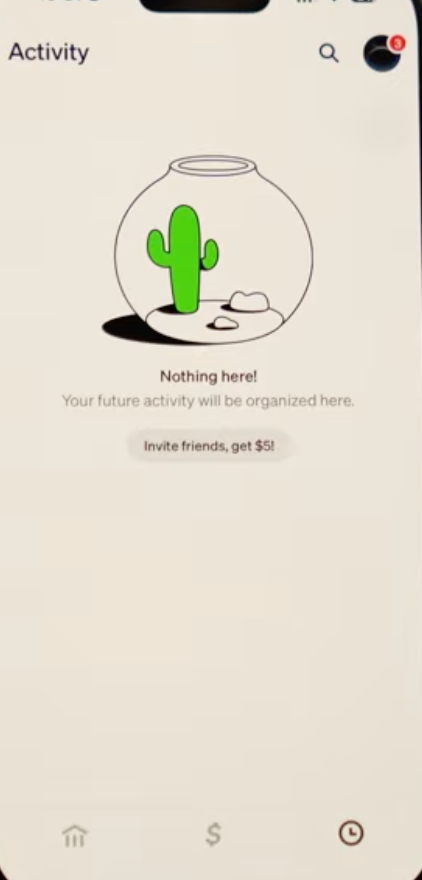
- Open Cash App
- On the home screen, look at the bottom navigation bar.
- Tap the clock icon, as this is the Activity tab. (Some versions of the app may show it as a list icon instead of a clock, but it serves the same purpose.)
- The Activity page will open, showing your most recent transactions first.
You will find each of your transaction entries in the list, usually showing
- Date
- Counterparty (person or business name and
- Amount (with a green plus for money in, or red minus for money out).
Can People See Your Legal Name?
Find out what name people can see on Cash App, when your legal name is shown, and how to protect your privacy.
My Activity Tab is Missing: Troubleshoot
Still missing your Activity tab?
If the troubleshooter didn’t resolve the issue, check your transaction history through Cash App on the web or contact Cash App Support for further help.
1-800-969-1940
cash.app/help
Open Cash App → Tap your profile icon → Select Support → Choose Chat or your issue topic
Cash App
1955 Broadway, Suite 600, MSC 211
Oakland, CA 94612
What Can You See in the Cash App Activity Tab?
On the mobile app, the Activity tab is a scrollable transaction list.
- A header or toolbar at the top
- Each transaction is listed as a row or card. It shows:
- Date/time of transaction
- Name or description of the other party
- Amount transferred (with + or – sign, often coloured green for incoming, red for outgoing).
- A status indicator as Completed or Pending in grey for pending items.
- Possibly an icon indicating type (e.g. a profile photo or logo on the left).
- Tap on the transaction to show full details.
On the Cash App website (cash.app/account), the Activity page appears after login.
Table: Mobile App vs Website
| Feature |
Mobile App
|
Website
|
|---|---|---|
| Transaction History | Activity tab | Activity / account |
| Date | ||
| Time | Details | Details |
| Amount | ||
| Status | ||
| Sender / Recipient | ||
| Note / Memo | Details | Details |
| Transaction ID | Details | Details / statement |
| Search / Filter | Search / filters may vary | History browsing |
| Statements | Documents & statements | Documents → Account statements |
| Export / Download | Account statements | Account statements |
Cash App’s desktop experience closely mirrors its website. On the web, you can generally download annual statements or export transactions as CSV files. On mobile, statements are available as monthly PDFs through the “Documents” section.
How to Find a Specific Transaction in Cash App
To locate a particular transaction in the Activity:
- Use Search: On the mobile Activity tab, there is often a search bar. You can type a name, amount, or note text to filter results.
- Use Filters: Tap the Filter option to narrow by date range or transaction type.
- Scroll by Date: Without a search, you can scroll to older entries.
- Transaction ID: If you have a transaction ID, you cannot directly search it, but you can scroll or search by amount/date if known.
Once found, tap the transaction to open full details.
There you’ll see all fields.
You can take a screenshot by fully loading the details, then using the device’s normal screenshot method.
How to Check Pending Payments in the Activity Tab
In the Activity list, pending transactions are clearly marked.
A pending payment usually shows up with a Pending label next to it.
To act on a pending payment:
- Tap the pending transaction in the Activity list.
- In the detail view, you will see options (typically “Accept” or “Cancel”).
- Tap Accept to complete the payment, or Cancel Payment to void it.
If a payment remains pending for an unusually long time, consider contacting the recipient or Cash App support for assistance.
Activity Tab on the Cash App Website
On the Cash App website, the Activity section is accessed after logging in:
- Go to cash.app/account and sign in with your Cash App email or phone number.
- In your account dashboard, navigate to Activity in the menu.
- The Activity page will display your transaction history.
- Scroll through the list to see recent transactions.
- Click any transaction row for details; this shows the same information as on mobile.
The website’s Activity view may allow downloading statements or CSVs.
- Open Documents
- Click Account Statements to view or export monthly or yearly statements (often as PDF or CSV).
Cash App Activity Tab FAQs
It's where you can view your Cash App transaction history.
On mobile, tap the Activity icon on the Cash App home screen.
Yes, you can search and filter your transaction history when those options are available in the app.
Tap any transaction to view its details, including its status and other available information.
"Pending" means the payment has not been completed yet and may require action, such as accepting the payment.
The search option is at the top of the Activity section when available.
Check your filters and account, then make sure Cash App is updated.
No, Cash App does not allow you to delete individual transactions from your history.
You can view and download account statements by logging in to Cash App on the web or through the app's Documents & statements section.
It means you have an unread notification or item in the Activity section.
References:






2 Comments